How to Take a Full Page Screenshot of a Website
A full page screenshot, also called a scrolling screenshot, captures an entire scrollable webpage, from the very top to the very bottom, not just the part currently visible in your browser window. That distinction matters more than it sounds: a normal screenshot shortcut only grabs whatever is on screen at that moment, so anything below the fold, additional sections, footers, long articles, gets left out entirely. This guide covers the main ways to capture a full page: the built-in Chrome DevTools method, browser extensions, and online URL-based tools, along with the problems that most often make a full-page capture look wrong.
What Is a Full Page Screenshot?
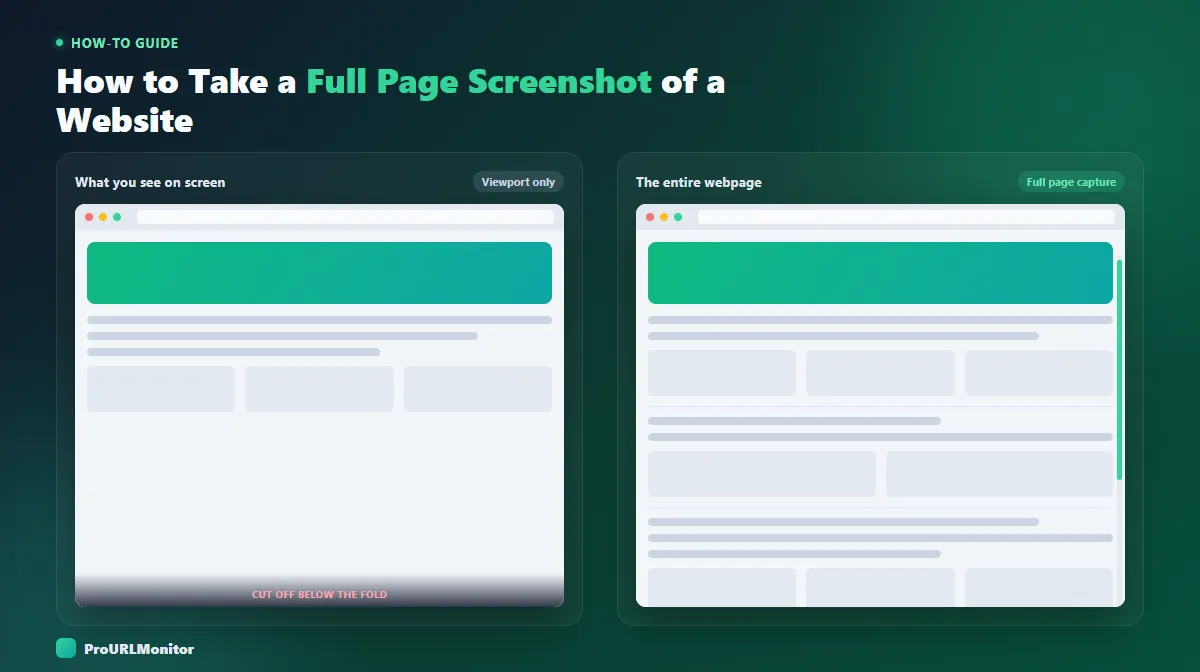
A viewport screenshot captures exactly what's rendered on screen at a given moment, the visible browser window and nothing more. If a webpage is taller than your screen, which most are, everything past the bottom edge of the window simply isn't in the image.
To screenshot an entire webpage instead, you need a tool built for it. A full page screenshot captures the entire document, including all the content a visitor would only see by scrolling. Tools that do this work by scrolling the page in steps, capturing each section as they go, and stitching those sections into a single continuous image that represents the page's full scrollable height. The result looks like one long screenshot rather than a cropped view of your monitor.
How to Take a Full Page Screenshot in Chrome
Chrome has a built-in full-page capture command in DevTools, so you don't need an extension or an online tool for a quick capture of a page you're already viewing.
- Open the page you want to capture in Chrome.
- Open DevTools. Press F12, or Ctrl+Shift+I on Windows and Linux (Cmd+Option+I on Mac). You can also right-click anywhere on the page and choose Inspect.
- Open the Command Menu. With DevTools focused, press Ctrl+Shift+P on Windows/Linux or Cmd+Shift+P on Mac.
- Type "screenshot" into the Command Menu.
- Select "Capture full size screenshot." Chrome scrolls through the entire page automatically, stitches every section together, and saves a single PNG to your Downloads folder.
The Command Menu actually lists four related screenshot commands, so it's worth knowing the difference:
- Capture screenshot – captures only the current viewport, the same area you'd get from a normal screen-capture shortcut.
- Capture full size screenshot – captures the entire scrollable page, top to bottom, as one stitched image.
- Capture node screenshot – captures a single element you've selected in the Elements panel, useful for grabbing one component in isolation.
- Capture area screenshot – lets you drag a custom rectangle to capture a specific region of the page.
This is the fastest way to get a chrome full page screenshot with no setup, but it has two known limitations worth knowing about before you rely on it: it can produce blank sections on pages that lazy-load content as you scroll, since the capture can move faster than the content loads, and it can capture the wrong element on pages built around an inner scrolling panel rather than the main document. Both issues are covered in more detail below.
How to Screenshot a Whole Page With a Browser Extension
Browser extensions capture a whole page screenshot the same way DevTools does, by scrolling through the page and stitching the sections together, but they add it as a one-click toolbar button instead of a DevTools command. That makes them a convenient option if you're capturing pages regularly and don't want to open DevTools each time.
The general workflow is similar across most full-page capture extensions:
- Open the page you want to capture and click the extension's toolbar icon.
- Choose a full-page or "capture entire page" option (as opposed to a visible-area-only option).
- The extension scrolls through the page, capturing and stitching sections into one image.
- Save, copy, or download the finished screenshot.
An extension is also the right tool when a page requires your active browser session, for example, content behind a login, or a public page that blocks automated screenshot services. ProURLMonitor's own Auditor extension works this way: it freezes on-page animations before capturing so stitched sections stay visually consistent, does an initial scroll pass to let lazy-loaded content resolve before the real capture begins, and hides repeated sticky or fixed elements (like a fixed header) after the first section so they don't appear duplicated down the length of the image.
How to Capture a Full Webpage From a URL
Sometimes you don't want to open a page yourself at all, for example, when you're reviewing a client's site, checking a competitor's page, or capturing a URL someone sent you without navigating there in your own browser. For that, a URL-based screenshot tool is usually the most convenient option: you paste a link, and the page is rendered and captured remotely.
ProURLMonitor's Full Page Screenshot Tool works this way. Paste in any public URL, choose a desktop viewport width, and select Capture Full Page. The page renders in a headless browser on ProURLMonitor's servers, and you get back a full-page image you can preview directly in your browser, then download as PNG, JPG, or a single continuous PDF, no extension install and no DevTools required. Because the URL is loaded on ProURLMonitor's own servers rather than your browser, it only works for publicly accessible pages; anything that requires a login or your own browser session needs the extension method above instead.
How to Take a Scrolling Screenshot
"Scrolling screenshot" and "full page screenshot" describe the same result: a single image that includes everything on a page, not just what's visible in the browser window at one moment. The name just describes how the capture happens, the tool scrolls down the page in steps and stitches each section together, instead of you scrolling and screenshotting section by section yourself.
So if what you're actually looking for is how to take a scrolling screenshot, any of the three methods above already does it:
- Chrome DevTools' "Capture full size screenshot" command scrolls the page for you and saves one PNG.
- ProURLMonitor's browser extension scrolls your active tab and lets you export PNG, JPG, or PDF.
- The ProURLMonitor Full Page Screenshot Tool scrolls a URL you paste in, no browser extension required.
The manual alternative, taking several regular screenshots as you scroll and stitching them together yourself in an image editor, works but is slow and easy to get wrong: sections can overlap, gaps can appear between them, and the seams are often visible in the finished image. That stitching is exactly what the methods above automate for you.
It's also worth knowing this isn't a universal browser feature. Some mobile operating systems and manufacturer browsers (certain Android and Samsung devices, for example) include their own "scroll capture" option built into the screenshot menu, but that's a device-level feature rather than something Chrome on desktop provides natively, so the DevTools, extension, and online-tool methods above remain the reliable options there.
Full Page Screenshot vs. Regular Screenshot
| Regular (viewport) screenshot | Full page screenshot | |
|---|---|---|
| Captured area | Only what's currently visible on screen | The entire page, top to bottom |
| Scrolling content | Cut off below the fold | Included, scrolled and stitched together |
| Ease of use | One shortcut, no setup | Requires DevTools, an extension, or a URL tool |
| Repeatability | Manual, may need several screenshots stitched by hand | One capture reproduces the whole page consistently |
| Typical use cases | Quick visual notes, sharing what's on screen right now | QA, audits, design review, documentation, archiving a page |
Neither is universally "better." A viewport screenshot is faster when you just need to show someone what's currently on screen. A full page screenshot is the better choice whenever the whole page, not just the top of it, actually matters.
Which Full Page Screenshot Method Should You Use?
All three methods covered above produce the same kind of stitched, full-page image, but they fit different situations.
| Chrome DevTools | Browser extension | Online URL tool | |
|---|---|---|---|
| Installation | None, built into Chrome | Manual ZIP download, loaded as an unpacked extension | None, runs in your browser |
| What it captures | The page open in your current tab | The page open in your current tab | Any public URL you paste in |
| Logged-in or internal pages | Yes, uses your current session | Yes, uses your current session | No, publicly accessible pages only |
| Convenience | A few steps through DevTools each time | One click after installing | Paste a URL, nothing to install |
| Export formats | PNG only, saved to Downloads | PNG, JPG, or PDF | PNG, JPG, or PDF |
Use DevTools when you're already in Chrome and just need a quick, one-off capture of the page in front of you. Reach for the browser extension when you're capturing regularly, need a JPG or PDF export, or need to capture a page that requires you to be logged in. Use the Full Page Screenshot Tool when you want to capture a URL without opening it yourself, for example when reviewing a client's site or a link someone sent you.
Why Does My Full Page Screenshot Look Wrong?
Most full-page screenshot problems come down to a handful of recurring causes:
- Sticky or fixed headers appear repeated. If a header or navigation bar stays pinned to the top of the screen, a naive capture can include it once per scrolled section, so it looks duplicated down the image. Tools that specifically handle this hide repeated fixed elements after the first capture.
- Lazy-loaded images or sections are blank. Content designed to load only when scrolled into view may not have finished loading by the time that section is captured.
- Cookie banners and consent popups get in the way. These often sit fixed on screen and can be captured once per section, or block content underneath them.
- Modals and popups cover the page. A newsletter signup or promotional overlay captured mid-display will obscure whatever is behind it in every section.
- Animations get caught mid-transition. A capture taken while something is fading in, sliding, or resizing can look half-finished.
- Infinite-scroll pages don't have a true "bottom." Since more content keeps loading as you scroll, a full-page capture has to stop somewhere, which may not be where you expect.
- Responsive layouts change with viewport width. A page can look meaningfully different at a narrow mobile width than at a wide desktop width, so it helps to know (and choose) which viewport size you're capturing at.
- Very long pages can hit format limits. An extremely tall page can exceed the maximum image size some formats or browsers support, particularly when converting a screenshot to certain export formats after the fact.
How to Capture Lazy-Loaded Content
Lazy loading is one of the most common reasons a full-page screenshot comes back with blank gaps. Since a lazy-loaded image or section only renders once it scrolls into the viewport, a capture tool that scrolls straight through without pausing can move past a section before its content has actually loaded.
A few things help:
- Scroll through the page yourself first, then capture. This gives lazy-loaded sections a chance to trigger and load before the screenshot happens.
- Use a tool that does a warm-up pass. Some full-page capture tools, including ProURLMonitor's browser extension, scroll through the page once before the real capture specifically to let lazy-loaded content resolve.
- Give the page a moment after it finishes loading before capturing, especially on connections or pages where images take longer to appear.
If a page still shows blank sections after this, it may be loading content in a way that only triggers on genuine user scroll events rather than a programmatic one, in which case scrolling manually and using a viewport-by-viewport approach may be more reliable than a single automated full-page capture.
PNG vs JPG for Full Page Screenshots
PNG and JPG handle a webpage screenshot differently, and the difference is usually more noticeable on a full-page capture than a small one because there's more image to compress.
PNG is lossless, which keeps text, icons, and sharp UI edges crisp. That makes it the better default for QA screenshots, documentation, and anything where legibility matters, at the cost of a larger file size, especially on a tall page.
JPG compresses the image, producing a smaller file that's easier to share or email. That's a reasonable trade-off for a quick visual reference, but heavy compression can soften fine detail like small text or thin borders, which matters more on a long page packed with content than on a simple photo.
If you're not sure which to pick, default to PNG when the screenshot needs to be read closely, and JPG when file size matters more than pixel-level clarity.
Screenshot vs Save as PDF
A full page screenshot and a "Save as PDF" export solve different problems, even though both can capture an entire webpage.
A screenshot produces one continuous image that shows exactly how the page rendered, in the aspect ratio of the actual page rather than a printable page size. That makes it easy to view as a single file, drop into a document, or compare side by side with another version of the same page.
Saving a page as a PDF through a browser's print dialog, by contrast, typically reflows the page into standard-sized printable pages, which can change spacing, break content across page boundaries, and alter how backgrounds or fixed elements display. Some full-page screenshot tools, including ProURLMonitor's, offer a PDF export built the other way around: the entire screenshot placed on a single continuous PDF page sized to match the image, rather than split across multiple printable pages.
Use a screenshot when you want an exact visual record of the page. Use a paginated PDF export when you specifically need a printable, page-by-page document.
When Are Full Page Screenshots Useful?
Full page screenshots come up across a wide range of workflows:
- Website QA, confirming a full page renders correctly after a deploy, including everything below the fold.
- SEO audits, documenting a page's actual layout and content alongside technical findings.
- Design reviews, comparing an implemented page against a design file from top to bottom.
- Client approvals, sending a single image that shows the whole page rather than several partial screenshots.
- Documenting page changes, keeping a visual record of what a page looked like at a specific point in time.
- Competitor or reference research, capturing how another site structures a full page for comparison.
- Bug reports, attaching one image that shows a layout issue in the context of the whole page instead of just the visible portion.
- Archiving a visual state, keeping a record of a page before a redesign, migration, or content update.
Common Full Page Screenshot Mistakes
- Capturing before the page has finished loading, which can miss images, fonts, or lazy-loaded sections.
- Forgetting the page requires a login, then wondering why a URL-based tool can't capture it, when a browser extension is what's actually needed.
- Using JPG for a text-heavy page and losing clarity that would have stayed sharp as a PNG.
- Not accounting for a sticky header or cookie banner, then being surprised it appears repeated in the stitched image.
- Capturing at the wrong viewport width for what the screenshot is actually meant to show, for example a desktop capture when the goal was to review the mobile layout.
- Assuming a screenshot and a "Save as PDF" export will look identical. They serve different purposes and can render the page differently.
- Skipping a second capture on very long or dynamic pages to confirm the first one came out complete.
Frequently Asked Questions
How do I take a screenshot of an entire webpage?
Use a method that scrolls the page and stitches every section into one image, rather than a plain screen-capture shortcut. In Chrome, open DevTools, open the Command Menu, and choose "Capture full size screenshot." You can also use a browser extension or an online tool that accepts a URL and captures the full page for you.
How do I take a full page screenshot in Chrome?
Open the page, open DevTools (F12, or Ctrl+Shift+I on Windows/Linux, Cmd+Option+I on Mac), press Ctrl+Shift+P (Cmd+Shift+P on Mac) to open the Command Menu, type "screenshot," and select "Capture full size screenshot." Chrome scrolls the page automatically and saves a single stitched PNG to your Downloads folder.
Why does my screenshot only capture the visible part of the page?
Standard screenshot shortcuts, like Print Screen or Cmd+Shift+4, only capture the pixels currently rendered in the browser window. They have no way of knowing what's further down the page, since that content hasn't been drawn to the screen yet. Capturing the rest requires a tool that scrolls the page and stitches the sections together, which is what full page screenshot tools do.
Can I take a full page screenshot without a browser extension?
Yes. Chrome DevTools has a built-in full-page capture command that needs no extension, and online tools like the ProURLMonitor Full Page Screenshot Tool capture any public URL directly from your browser. An extension is mainly useful when a page requires you to be logged in or blocks automated screenshot services.
How do I screenshot a page that requires scrolling?
Any full-page capture method handles scrolling for you. The tool scrolls through the page in steps, captures each section, and stitches them into one continuous image, so you don't need to manually scroll and take multiple screenshots yourself.
What is a scrolling screenshot?
A scrolling screenshot is another name for a full page screenshot: a single image built by scrolling down a page in steps and stitching each section together, rather than capturing only what fits on screen at once. Chrome DevTools, a browser extension, and URL-based tools all produce a scrolling screenshot; the terms describe the same result.
Why are parts of my full-page screenshot missing or blank?
This usually happens with lazy-loaded content, images or sections that only load once they scroll into view. If the capture tool moves through the page faster than the content can load, those sections can appear blank. Scrolling through the page once before capturing, or using a tool that pre-scrolls to warm up lazy content, usually fixes it.
Is PNG or JPG better for a webpage screenshot?
PNG is generally the better default for webpage screenshots. It's lossless, so text, UI elements, and sharp edges stay crisp, which matters for QA, documentation, and client review. JPG produces a smaller file by compressing the image, which is fine for casual sharing but can slightly blur fine detail on a text-heavy page.
Is a full page screenshot the same as saving a webpage as a PDF?
No. A full page screenshot is a single continuous image of exactly how the page rendered. Saving a page as a PDF through a browser's print function typically reflows the content into standard printable pages, which can change layout, spacing, and how images and backgrounds appear. Use a screenshot when you need an exact visual record, and a PDF export when you need a paginated, printable document.
Try Our Free SEO Tools
Put what you learned into action with our free SEO analysis tools.