Google URL Inspection Tool: How to Check Indexing in Search Console
Quick Links: Google Indexing guide · How to check if a page is indexed · Crawled - Currently Not Indexed · Discovered - Currently Not Indexed · Google Index Checker
What the URL Inspection tool is
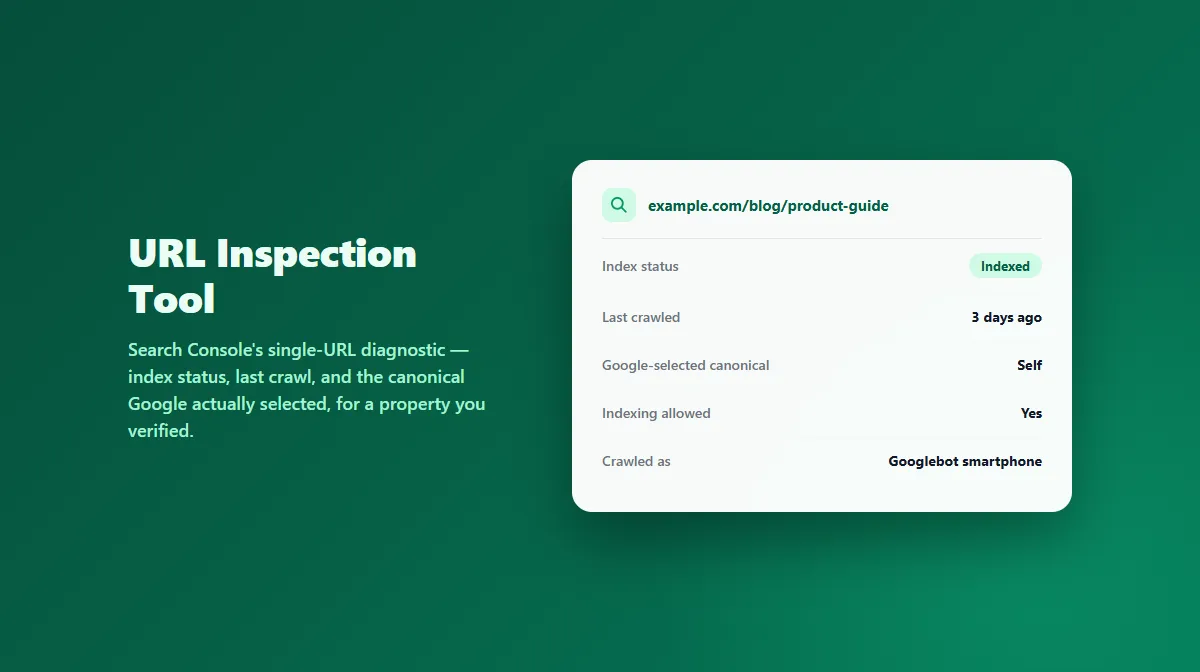
URL Inspection is the single-URL diagnostic feature inside Google Search Console. Paste any URL from a property you've verified ownership of, and it returns Google's own view of that page: whether it's indexed, when Googlebot last crawled it, which canonical URL Google selected, whether any indexing-blocking issue applies, and details about how the page was fetched and rendered.
This is meaningfully different from checking public search results. URL Inspection reads Google's internal indexing decision directly — it isn't inferring anything from a search query. That's also exactly why it only works for properties you've verified: Google won't hand that internal data over for a site you don't control.
What it can show you
- Index status — whether the URL is indexed, and if not, which specific reason category applies (including statuses like Crawled - currently not indexed and Discovered - currently not indexed).
- Last crawl date — when Googlebot most recently fetched the page.
- User-declared canonical vs. Google-selected canonical — the canonical URL your page names, and the one Google actually chose to index, which are not always the same.
- Indexing allowed — whether robots.txt or a page-level directive blocks indexing.
- Crawled as — which Googlebot user agent (desktop or mobile) fetched the page.
- Referring sitemaps — which sitemap(s), if any, list the URL.
- Mobile usability and enhancement data, where applicable — structured data or other enhancement eligibility Google detected.
An important limitation: it's not always live
By default, URL Inspection shows the last crawled and indexed version of the page — not necessarily what's live right now. If you've made changes since Google's last visit, those changes won't show up in the standard report.
For that, use the tool's separate Test Live URL action, which fetches and evaluates the current live version on demand. This is the right step after you've made a fix and want to confirm it actually addresses the issue, rather than re-reading a stale snapshot.
Requesting indexing
After a live test (or directly from the inspection results), you can request indexing for the URL. This asks Google to prioritize a recrawl and reconsider the page — it does not guarantee the page will be indexed, and it's subject to a daily submission limit. It's most useful after a meaningful change: fixing a real blocker, substantially improving content, or correcting a canonical or noindex issue — not as a repeated nudge on a page you haven't actually changed.
URL Inspection vs. the Page indexing report
These are two different views inside Search Console, and it's easy to reach for the wrong one:
- Page indexing report — an aggregate, site-wide view: how many URLs are indexed, and counts broken down by each "not indexed" reason across your entire property. Start here to see the scale of an issue.
- URL Inspection — the detailed, single-URL drill-down. Use this once you know which specific URL you want to investigate.
Google Index Checker vs. URL Inspection
These solve related but genuinely different problems, and neither replaces the other:
| ProURLMonitor Google Index Checker | Search Console URL Inspection | |
|---|---|---|
| Access | Public, no login | Requires verified property ownership |
| What it checks | Whether a URL appears in public search results (a site: query via Google Custom Search or SerpApi) | Google's actual indexing decision, read directly |
| Scope | Bulk — up to 25 URLs per check, for any site | One URL at a time, only for properties you control |
| Result detail | Appears indexed / Not found / Uncertain | Index status, last crawl, selected canonical, indexing eligibility, and more |
| Best for | A fast first look at any URL, including sites you don't own | The authoritative answer, plus the why, for your own site |
Use the public checker when you want a quick signal — including for URLs on sites you don't manage. Use URL Inspection when the answer actually matters for a property you own, and especially when you need to know why a page isn't indexed rather than just whether it is.
Official Google resources
Try Our Free SEO Tools
Put what you learned into action with our free SEO analysis tools.