Why Is My QR Code Blurry or Not Scanning?
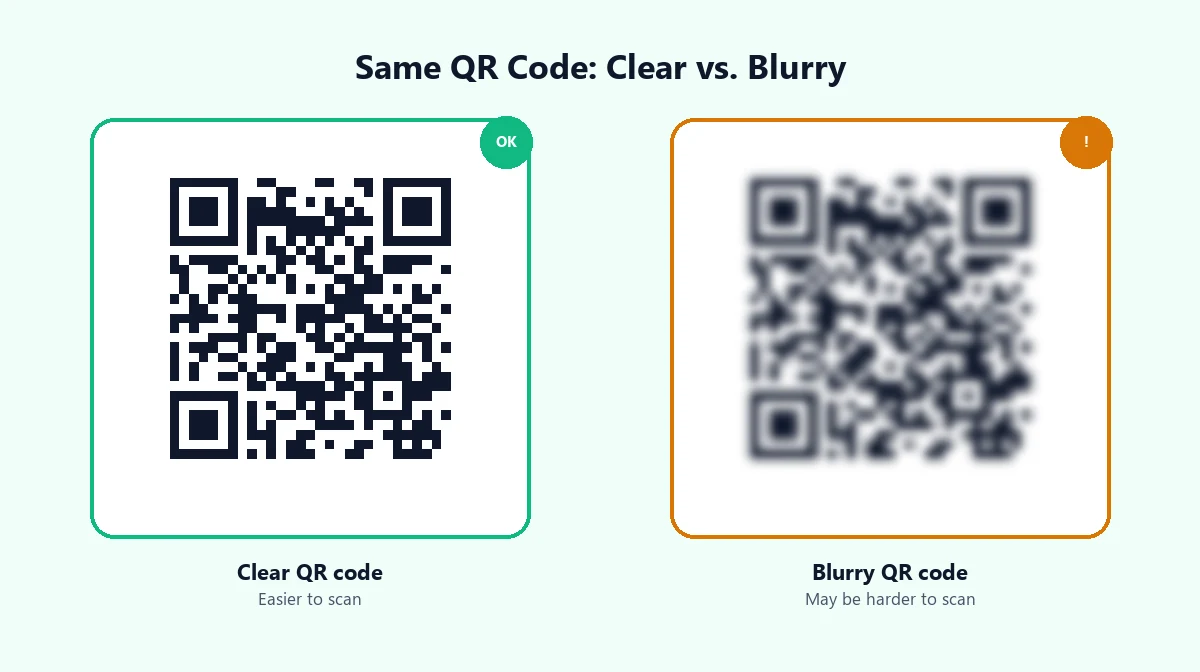
If a QR code looks blurry, the real problem is usually that a scanner can no longer tell where one module ends and the next begins. Blur is one way that happens, but it's not the only one — a QR code can also fail to scan because it's too small, poorly lit, low-contrast, missing its margin, or was stretched out of shape. Fixing the wrong one of these won't fix a scan failure, so it's worth understanding what's actually going on before you regenerate or reprint anything.
Why a Blurry QR Code Can Be Hard to Scan
A QR code is a grid of small black-and-white squares called modules. A scanner doesn't "read" the code the way a person reads text — it maps out the grid, finds the three large squares in the corners (the finder patterns), and reads each module as a 1 or a 0 based on whether it's dark or light.
That depends on being able to tell, pixel by pixel, exactly where one module stops and the next starts. Blur softens those boundaries into a gray gradient, forcing the decoder to guess where the edge actually falls. A little softness is often fine on simple codes with larger modules; once enough edges become ambiguous, the decoder can't reconstruct the grid, and the scan fails or reads back the wrong data.
That's also why a blurry QR code isn't automatically a dead one. Error correction (more on that below) lets a code tolerate some unclear sections and still scan — "blurry" covers everything from mild softness that barely matters to a smear that destroys the pattern completely.
Common Reasons a QR Code Won't Scan
Treat blur as one item on a checklist, not the automatic explanation. In practice, these are the causes worth ruling out, roughly in the order they're worth checking:
- The image itself is low resolution or blurry — a small source file or a compressed thumbnail export may never have had clean module edges.
- The code was stretched or distorted. QR codes are square; dragging one by a corner or forcing it into a non-square banner slot warps the modules and confuses the decoder.
- It's printed too small for the scanning distance — a code sized for a phone screen can be far too small on a poster viewed from a few feet away.
- Contrast is too low. Light gray on white, or a busy background behind the code, makes modules hard to distinguish even in a sharp file — see our guide on QR code colors and contrast for which combinations actually hold up.
- The quiet zone has been cropped or covered. That blank margin isn't decorative — cropping it, or overlapping it with text or an image, can stop a scanner from finding the code at all.
- The code encodes too much data. Long URLs, full vCards, or large text blocks force a denser grid with smaller modules, making any blur or print imperfection more damaging.
- Compression damaged the module edges. A heavily compressed JPEG introduces soft, blocky artifacts around edges; PNG or SVG avoids this.
- A logo covers too much of the code. One in the center is common and usually fine, but a large or low-contrast logo can remove more pattern than error correction can recover.
- The physical copy has glare, curves, folds, or damage — a laminated code under bright light, a curved cup, or a torn sticker introduces distortion that has nothing to do with the original file.
- The problem is on the scanning side, not the code. A dirty or shaking camera, poor lighting, or scanning from too far away or at a sharp angle can make a good QR code seem broken.
Note the split here: the first eight are things you control when you create or export the code. The last two are about the environment the code lives in and the device reading it — worth checking before you assume the code itself is at fault.
How to Fix a Blurry QR Code
Regenerate instead of repairing, when you can. If you still have the original content — the URL, Wi-Fi credentials, or contact details — creating a fresh QR code is almost always faster and more reliable than trying to salvage a degraded image. A QR Code Generator builds the pattern directly from your data at whatever size and format you need, so there's no guesswork about what the blurry version was originally supposed to look like.
Beyond that, a few habits prevent most blur-related scan failures:
- Export at a size that matches your final use, not the smallest file that "looks fine" on screen — for print, generate larger than you think you need; you can always place it smaller.
- Keep the aspect ratio square by resizing proportionally rather than dragging a single edge.
- Use PNG, SVG, or PDF instead of JPEG. JPEG's compression is built for photos and tends to blur the sharp edges a QR code depends on.
- Leave the quiet zone alone — don't crop tight to the pattern or place text or images inside that margin.
- Keep contrast high. A dark foreground on a light, plain background is the most reliable combination.
- Only encode what you need. A shortened link produces a simpler, more forgiving pattern than a long URL.
- Test before you distribute, before a code goes to print or goes live somewhere you can't easily fix it.
How to Test Whether Your QR Code Still Works
A code that scans once, on one phone, isn't proven — test it the way real users will encounter it:
- Try more than one device — camera quality and decoding software vary enough between phones that a struggle on one can be fine on another.
- Test at a realistic distance, not just up close; a poster is usually viewed from farther away than a business card.
- Check it under different lighting — bright sunlight, dim indoor light, and any glare the final surface might pick up.
- Test the actual output, not just the file — a code that scans perfectly on screen can behave differently once printed, laminated, or placed on a curved surface.
Our QR Code Scanner can decode an existing QR code either from your camera or from an uploaded photo or screenshot, which makes it a quick way to check a code you already have — a saved image, an exported file, or a photo of a printed proof — without needing a separate scanning app.
A Quick Example
Say a QR code works fine when you open the original PNG, but fails once it's placed into a printed flyer. Walking the chain in order usually finds the cause fast:
- Open the original file and confirm it scans on its own — if not, the problem started at generation, not in the flyer.
- Check how it was resized. Dragged by a corner, or scaled proportionally?
- Confirm the aspect ratio stayed square — slightly wider than tall means it was distorted.
- Look at the quiet zone — did the layout crop the code tight, or place a caption inside that margin?
- Check contrast — plain background, or a photo or brand color behind it that reduces contrast?
- Review print quality — full resolution, or did a low-quality setting shrink the code below a workable size?
- Test the printed copy itself, since paper texture and ink spread can soften edges a screen never shows.
QR Code Resolution vs. Physical Print Size
Pixel dimensions alone don't tell you whether a QR code will scan reliably once it's printed — what matters is how large each individual module ends up on the physical page, and how far away it will be scanned from.
A common starting point across QR code sizing guides is a distance-to-size ratio of roughly 10:1: the code should be at least about one-tenth as wide as the distance it will typically be scanned from — a code scanned from a meter away wants to be roughly 10 cm wide, with room to spare in poor lighting. Guides also commonly avoid printing a QR code smaller than about 2 x 2 cm even for close-range scanning, since below that, module edges get too fine to render and focus on reliably.
There's no single official number that applies to every design and printer, since print quality, ink spread, and paper type all affect how cleanly small modules render. Treat the ratio above as a starting point, not a guarantee, and size up when the printing method or viewing distance is less than ideal. For a deeper explanation of module counts and how data density affects the minimum usable size, see our guide on how small a QR code can be.
For a full walkthrough of preparing and printing a QR code correctly — sizing, resolution, quiet zone, contrast, and testing a proof before a full run — see our QR code printing guide.
Does Error Correction Fix a Blurry QR Code?
QR codes support four levels of built-in error correction — L, M, Q, and H — which let a scanner reconstruct part of the data even if part of the code is unreadable. According to DENSO WAVE, the QR code's original developer, each level can recover roughly:
- L — about 7% of the code
- M — about 15%
- Q — about 25%
- H — about 30%
Higher error correction is genuinely useful — it's why adding a logo to a QR code (which covers part of the pattern) usually pushes the encoding to level H automatically. But it's a buffer for damage you can't avoid, not a license to make a code excessively blurry, tiny, or low-contrast on purpose. Error correction recovers a percentage of missing or unreadable modules; it doesn't restore an image that's blurry across most of its surface, and it can't compensate for a quiet zone that's been cropped away, since the scanner has to locate the code before error correction ever comes into play.
Quick QR Code Troubleshooting Checklist
- Open the original file and confirm it scans before troubleshooting anything downstream.
- Check that the code wasn't stretched — width and height should match.
- Confirm the export format is PNG, SVG, or PDF, not a heavily compressed JPEG.
- Make sure the quiet zone (blank margin) is intact and nothing overlaps it.
- Check contrast — dark foreground, light and plain background.
- Confirm the print or display size fits the expected scanning distance.
- If there's a logo, make sure it's modest in size and the code still uses a high error-correction level.
- Test the actual printed or published version, not just the source file, from a normal distance and in normal lighting.
Frequently Asked Questions
Why does my QR code look blurry?
Usually one of a few things: the image was scaled up from a small source file, it was exported at low resolution, it went through heavy compression, or it was resized without keeping its square aspect ratio. Any of these can blur the edges between the code's black-and-white modules.
Can a blurry QR code still scan?
Sometimes. QR codes include error correction that can recover a portion of the data even when part of the code is unclear or obscured. But error correction has limits — a code that's blurry enough to lose clean edges on many modules, or has a cropped quiet zone, can fail even with high error correction.
Why does my QR code scan on my screen but not when printed?
A screen displays the code at a fixed pixel resolution with backlighting, which tends to look sharp regardless of size. Printing exposes real-world issues instead: the file may not have enough resolution for the print size, the printer may not render fine detail well, or the paper's texture and ink spread can soften small modules — problems a screen never reveals until it's already on paper.
Can I sharpen a blurry QR code?
Not reliably. Sharpening or AI upscaling can make a blurry QR code look cleaner without making it more accurate — these tools guess at missing detail rather than recovering the original module pattern, and a wrong guess can change the encoded data. If you still have the source content, regenerating the code is safer than trying to fix a degraded image.
Does resizing a QR code stop it from working?
Resizing itself is fine as long as the aspect ratio stays square and you're not enlarging a low-resolution file past the point where it stays sharp. Stretching a code non-uniformly, or blowing up a small image so much that it turns blocky, is what causes scanning problems.
How can I test a QR code before printing it?
Scan it the way your audience will: from a normal phone camera at a realistic distance, in ordinary lighting, and — if it's headed for print — from a physical test print rather than just the screen version. Our QR Code Scanner can decode an existing QR image from a photo or screenshot, which is a fast way to confirm a code still reads correctly before it goes to print.
Try Our Free SEO Tools
Put what you learned into action with our free SEO analysis tools.